
Elementor Review 2026: The Ultimate WordPress Page Builder Guide – Features, Pricing, Performance, Pros/Cons & Alternatives
-
Rabius Sany
- Updated On February, 2026
- Rating Methodology
- Disclosure
Editor's Rating:
4.6
How We Rate the Products
5.0 – Exemplary (Nearly flawless, innovative, and sets a new standard in its category.
4.5 – Outstanding
Top-tier product, benchmark-quality, and among the very best available.
4.0 – Excellent
High-performing, feature-rich, or exceptional value, with only minor shortcomings.
3.5 – Good
Performs reliably, often better than competitors, and fulfills its intended purpose.
3.0 – Average
Meets expectations and performs adequately, but does not stand out.
2.5 – Fair
Functional but with notable limitations; proceed with caution.
2.0 – Subpar
Below average performance; not recommended unless necessary.
1.5 – Poor
Major shortcomings; strongly advised to avoid.
1.0 – Dismal
Fails to deliver; do not consider purchasing.
The best overall visual page builder for most users who value design flexibility, AI tools, and a massive ecosystem over raw speed. It's exceptional for beginners (free version rocks), marketers (popups/forms), and WooCommerce stores.
Best For
Visual designers, marketers, freelancers, small agencies, e-commerce sites needing popups/forms/dynamic content.
Not Ideal For
Ultra-speed/minimalist sites (Spectra or Gutenberg win); unlimited-site agencies on budget (Divi lifetime better); developers wanting zero bloat (Oxygen/Bricks).
- Reputation Status
- Trustpilot: 4.5/5 ( 3,633+ reviews)
- Capterra: 4.6/5 (110+ review)
- G2: 4.4/5 (390+ reviews)
- WordPress.org: 4.5/5 (7,000+ reviews)
- Users' Rating
ELEMENTOR OVERVIEW

Elementor is the leading drag-and-drop WordPress page builder in 2026, powering over 16 million active websites (WordPress.org data, with ecosystem estimates reaching 19 million+). Launched in 2016 by Yoni Luksenberg and Ariel Klikstein, it has grown into a full ecosystem offering a free core version for basic designs and a Pro upgrade for professional-grade tools like Theme Builder, Popup Builder, WooCommerce integration, dynamic content, and Elementor AI (for generating text, images, code, and layouts).
This in-depth 2026 review is designed for real users — beginners, marketers chasing conversions, developers prioritizing speed, or agencies managing client sites. We use Best Pick Hive’s transparent, weighted methodology (detailed below) to rate Elementor based on hands-on testing, aggregated benchmarks from 2025–2026 sources (GTmetrix, PageSpeed Insights, WebPageTest), thousands of user reviews (WordPress.org 4.8/5, G2/Capterra ~4.6–4.7/5), and comparisons.
RATING BREAKDOWN
Overall Score: ★★★★½ (4.6/5) — Excellent. Still the top visual builder for most users, but performance bloat and pricing for agencies hold it back from a perfect 5.0.
| Criterion | Score | Weighted Contribution | Key Notes (2026 Data) |
|---|---|---|---|
| Ease of Use | 4.8 | 1.2 | Fastest to build a landing page (~10–25 min for beginners using kits; inline editing, Navigator, right-click speed up workflows). Minor curve for Theme Builder. |
| Performance & Speed | 4 | 1 | Improved DOM/asset loading; ~150–170 KB page weight, 25–30 requests; LCP 1.2–2.5s optimized; passes "Good" CWV with WP Rocket/CDN. Heavier than Spectra/Gutenberg. |
| Features & Flexibility | 4.9 | 0.98 | Unmatched: 100+ Pro widgets, 300+ kits, AI generation, full theme/popup/WooCommerce builder, dynamic content, huge add-on marketplace. |
| Value for Money | 4.8 | 0.72 | Free version excellent; Pro $59/year (1 site) great ROI for individuals; higher tiers expensive for 25+ sites (no lifetime/unlimited). |
| Support & Community | 4.5 | 0.675 | Massive ecosystem (136k+ FB group, YouTube tutorials); Pro 24/7 chat/tickets; community strong but some delays reported. |
| Weighted Total | 4.575 = 4.6 | Excellent overall; top for design freedom, strong for most users. |
Pros & Cons
Strengths:
- Visual drag-and-drop editor (real-time design)
- Beginner-friendly interface, no coding required
- Large collection of widgets/elements
- Hundreds of ready-made templates & site kits
- Theme Builder (Pro) – design header, footer, single post, archive pages
- Strong responsive controls (desktop, tablet, mobile)
- Works with most popular WordPress themes
- Supports dynamic content (ACF, CPTs – Pro)
- Global styles & reusable sections (Pro)
- Huge community, tutorials, and third-party add-ons
- WooCommerce customization support (Pro)
Drawbacks:
- Can slow down site speed if not optimized
- Pro version is paid (important features locked)
- Lock-in effect – pages may break if Elementor is removed
- Advanced features have a learning curve
- Adds extra CSS/JS compared to native Gutenberg
- Some plugins/themes may have minor compatibility issues
- Over-customization can make design management complex
- Frequent security patches and updates required (as a large, popular plugin, Elementor needs regular maintenance to stay secure and bug-free).
- Elementor Cloud hosting is expensive compared to standard hosts (~$11.99/month on Lite plan with limited resources; better to use third-party like Kinsta or Hostinger for value).
Who Is Elementor Best For?
- Casual Users/Beginners: Add style to posts/homepages easily; use high-quality Elementor templates for quick results.
- Digital Marketers: Leverage promotional elements like Form widget (lead capture to email services), Popup Builder, and landing page templates for conversions.
- Agencies/Freelancers: Pro version + Astra templates allow fast custom site builds with Theme Builder, AI, and dynamic data from ACF/Pods/Toolset. Ideal for client projects needing speed and flexibility.
Pro Tip: For agencies in Asian regions, pair with local CDN-optimized hosting to minimize Asia latency and deliver fast sites to clients.
- 4.8
Ease of Use

Elementor’s editor is one of the most intuitive in 2026:
- Real-time visual editing — Drag widgets, inline text changes, right-click duplicate/paste styles.
- Tools — Navigator (tree view), Finder (quick search), History/Revisions (unlimited undo), full-screen mode.
- Beginner test: ~10–15 min for a basic landing page using kits; ~25–40 min for multi-section with custom styles.
- Developer test: Advanced (Theme Builder, dynamic loops) takes 1–2 hours to master but saves massive time vs. coding.
- Responsive previews + custom breakpoints make mobile editing seamless.
Pro Tip:
- Mobile Responsiveness from Scratch: When building pages without relying on pre-made templates, Elementor sites aren’t automatically fully mobile-responsive. Manually fine-tune elements on tablet and mobile views: adjust margins/padding, hide/show sections, reorder columns, resize fonts/images, and preview in real-time. This small step prevents common desktop-only layouts and ensures a seamless experience across devices — especially important for users in regions with high mobile traffic like Bangladesh.
- Navigator & Version History for Complex Pages: Use the Navigator panel (tree-view outline) to quickly navigate and reorganize complex pages with many layers. Combine it with Version History (unlimited revisions with auto-save) to experiment safely — revert changes instantly without fear of breaking your design.
These tips are short, actionable, and add engagement — perfect for beginners who might find your benchmarks intimidating.
User-friendly Interface
Elementor’s visual drag-and-drop interface is what makes it one of the most intuitive WordPress page builders available today. As the name suggests, you build exactly what you see — real-time previews mean no guesswork. Text edits happen inline (just click and type like any word processor), while all other settings live in a clean, context-aware sidebar.

Here’s a breakdown of the main interface elements when you open Elementor on a blank or existing page:
- Left Sidebar (Widget & Settings Panel): This is where you add new widgets (drag them onto the canvas), or edit settings for any selected section, column, or widget. The panel dynamically changes based on what you click — showing Content, Style, and Advanced tabs.
- Live Visual Canvas: The large preview area shows your design exactly as visitors will see it. Initially empty on a new page, it fills with sections, columns, and widgets as you build. Everything updates instantly.
- Add Section / Template Button: Located at the top or bottom of the canvas — click to add a new row (section), column structure, or import a pre-made template/kit.
- Top Toolbar: Contains essential controls:
- Undo/Redo arrows
- Responsive mode switch (desktop, tablet, mobile)
- Full-screen toggle (hides sidebar for distraction-free preview)
- Save/Publish buttons
- Page settings (title, featured image, template type)
- Page-Level Settings (Bottom Gear Icon): Access site-wide or page-specific options: global colors/fonts, page template type (default, Elementor Canvas, Elementor Full Width), SEO title/description, and more.

Example: Editing a Widget in a Completed Design
When you click any widget (e.g., a heading or button), the left sidebar instantly switches to show its settings. You can adjust content (text, links), style (colors, typography, spacing, shadows), and advanced options (CSS ID/class, motion effects, custom positioning) — all without leaving the visual canvas.
Full-Screen Preview Mode
Hit the full-screen toggle (monitor icon) to hide the sidebar completely and see your design edge-to-edge — perfect for reviewing layouts before publishing.
Step-by-Step Getting Started Guide
Here’s a quick step-by-step walkthrough of getting started with Elementor:
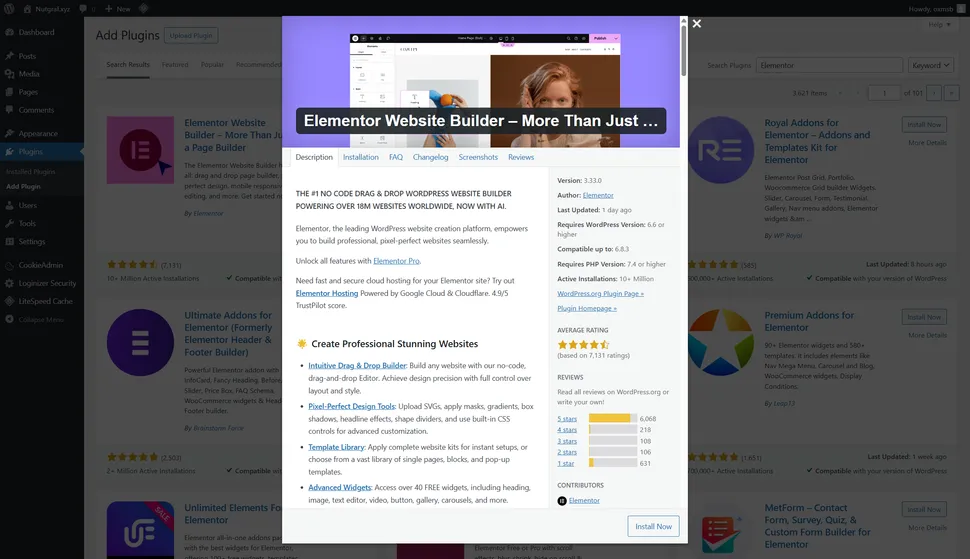
Step 01. Installation: Download/install the free plugin from WordPress.org or search ‘Elementor’ in WP dashboard Plugins > Add New. Activate and follow the setup wizard (choose theme, import starter templates if desired).

Step 02: Choosing a Template: Access 100+ kits/templates from the dashboard (filter by niche, preview, import). Start blank or use a kit for speed.
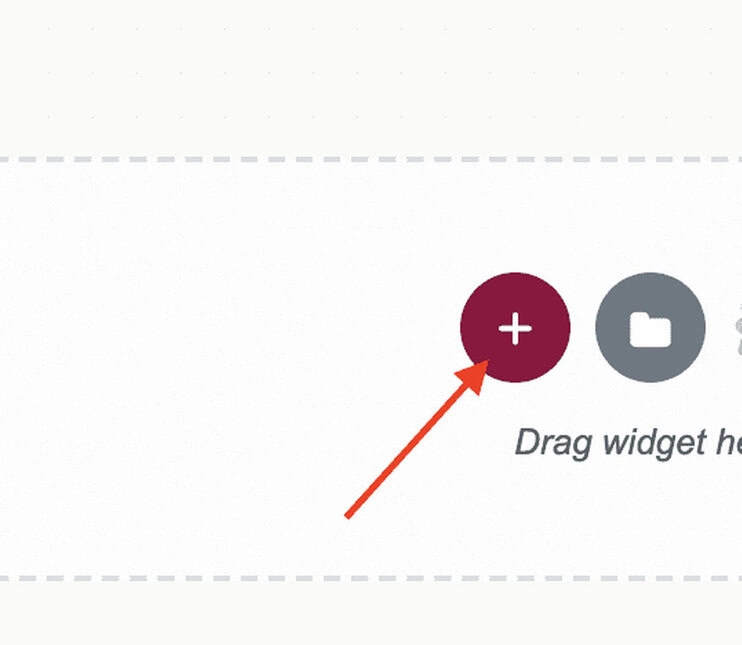
Or, Click the + icon to insert a new section.
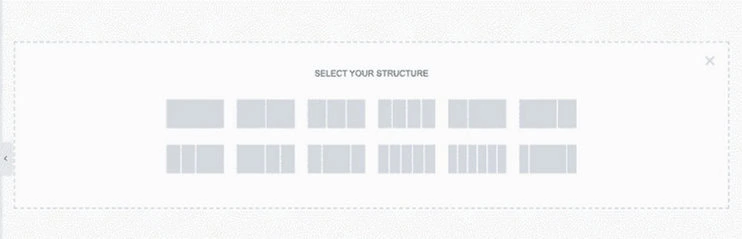
Step 03: Pick a page layout from the options on the screen.
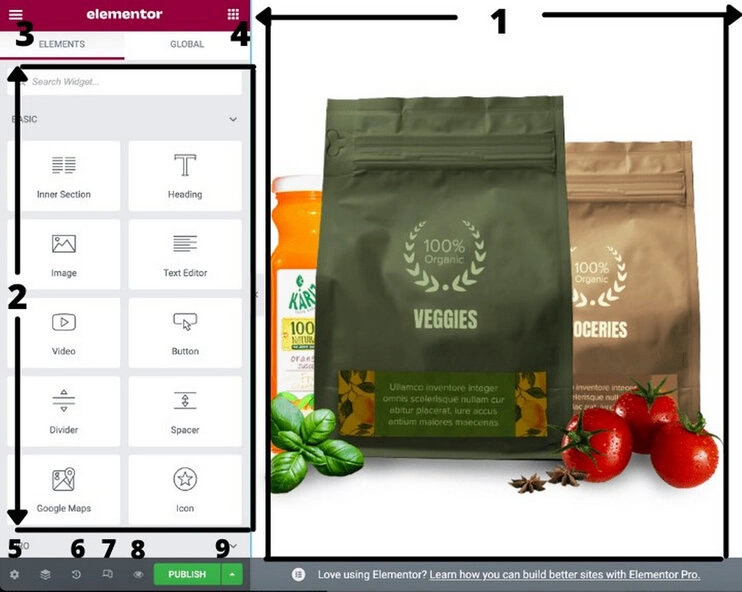
Step 04: Customizing a Page: Drag sections/columns/widgets from the left panel; edit inline (text, images, colors); use Content/Style/Advanced tabs for granular control.

Step 05: Adding Widgets: Drag from sidebar; configure in left panel (no-code adjustments for most).

Step 06: Publishing: Click Publish/Update — site goes live instantly; revisions saved automatically.
Once the element is positioned the way you want, fine-tune it using the Content, Style, and Advanced tabs in the left-hand panel.
The Advanced tab also includes the Display Conditions option, which lets you control precisely when and where a post, page, or individual element appears on your site.
You can select from a wide variety of display conditions, such as author, publication date, user login status, user role, and more.
Try different combinations until the result meets your expectations—and don’t forget to save your changes before exiting the page.

Customizing Existing Page
At times, you may need to modify a page that’s already been created. Elementor makes this process straightforward—and even simpler than building a page from the ground up.
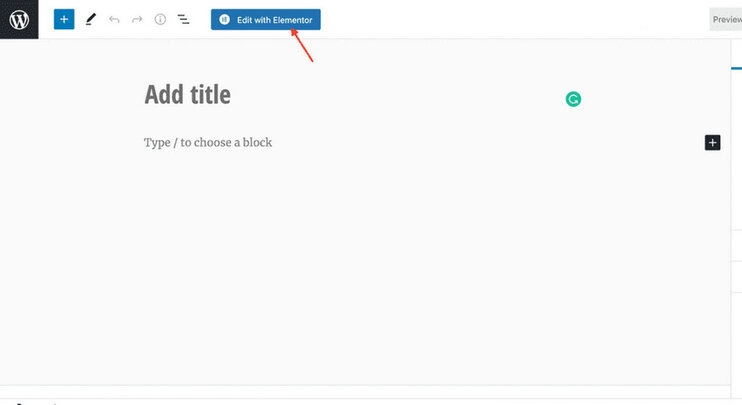
Go to Pages → All Pages and choose the page you want to modify.
Click Edit with Elementor below the page title to begin editing.
- To add a new element, drag a widget from the left-hand panel and drop it into the page.
- To change the order of elements, simply drag and reposition them within the live preview.
- To edit text, click directly on the text and make changes from the left panel, just as before. If you want AI-generated text, use the Write with AI option located at the bottom of the text field.

To create additional spaces for content, use sections and columns.
- Click on any widget to customize it.
- This opens the widget’s settings in the sidebar, where you’ll find the Content, Style, and Advanced tabs.
The same method applies when editing sections and columns.
As you adjust settings, the changes appear instantly in the live preview. Once you’re satisfied, click Update at the bottom of the left panel to save your work.
This process is seamless for beginners — most can have a basic page live in under 15 minutes.”
Other Powerful Interface Features

Elementor includes several smart tools that make building faster and more efficient:
- Right-Click Menu — Right-click any element to duplicate, copy/paste (content or just styles), delete, save to library, or edit columns/sections quickly.
- Navigator Panel — Opens a collapsible tree-view outline of your entire page (sections → columns → widgets). Great for complex layouts — rename sections for organization, drag to reorder, and jump to any element instantly.
- Finder Tool — Press Ctrl/Cmd + E (or click the search icon) to open a Spotlight-style search bar. Quickly jump to any widget, setting, page, template, or global style — saves time on large sites.
- Global Updates — Change a global color/font once and it updates everywhere — ideal for maintaining brand consistency.
Overall, the Elementor editor interface in 2026 is highly efficient for creating custom designs without code. Beginners can build a basic page in 10–20 minutes using templates; experienced users appreciate the speed enhancements (right-click, Navigator, Finder) that make complex layouts manageable. While the sheer number of options can feel overwhelming at first, the real-time visual feedback and smart tools make it one of the most productive builders available.
How to Do Make Design Responsive

Websites built with Elementor are responsive by default, meaning your layouts automatically adjust to look great on desktops, tablets, and mobile devices.
That said, there may be times when you want to fine-tune how your design appears on specific devices. For instance, you might reduce font sizes on mobile screens or hide certain images for smaller displays.
Elementor provides several tools to handle this:
You can switch to responsive preview modes directly within the editor.
Many settings include device-specific controls, allowing you to customize options separately for desktop, tablet, and mobile users.
The Advanced tab includes visibility options that let you hide elements on selected devices.
Additionally, starting in 2023, Elementor introduced support for custom responsive breakpoints, giving you even more control over how your site adapts across different screen sizes.
Elementor Layout Structure
If you’re new to website creation, understanding how Elementor structures a page will make things much easier.
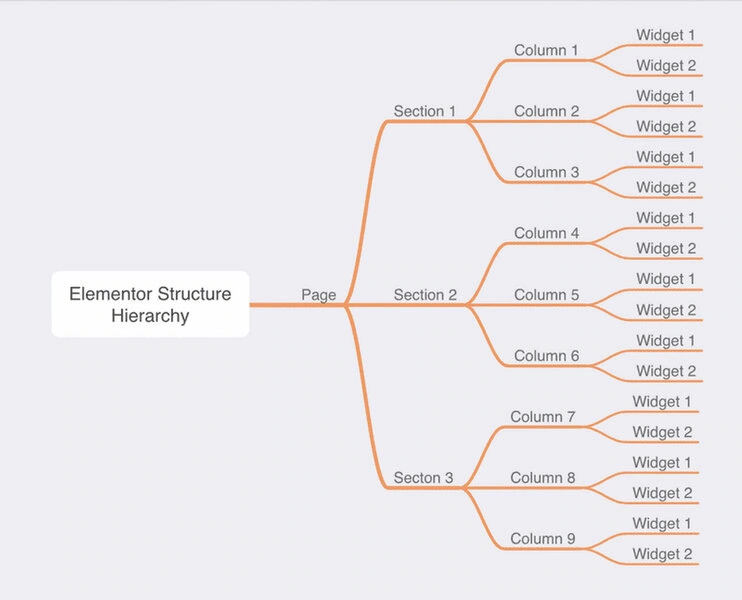
Every webpage is built on a grid system made up of sections, columns, and widgets.
Section: A section works like a horizontal row. You can customize its background, width, height, spacing, and more. Columns and widgets are placed inside sections.
Column: Columns split a section into vertical areas. Each column can be styled and adjusted independently.
Widgets: Widgets are the actual content elements, such as text, images, buttons, or videos, and they sit inside columns.
A single page can include multiple sections. Each section holds columns, and widgets are placed within those columns.
An illustration below shows how this layout structure fits together.
- 4.0
Performance & Speed
Hands-On GTmetrix Tests: Real-World Speed Impact

In independent hands-on testing (using identical templates like an outdoor adventure site on the same server and domain), Elementor-loaded pages consistently show higher load times compared to lightweight alternatives.

- Without Elementor (pure Astra theme): Fully loaded time ~2.2 seconds.
- With Elementor (same template + Elementor widgets): Fully loaded time ~5.5 seconds, with significantly more HTTP requests due to additional code and assets.
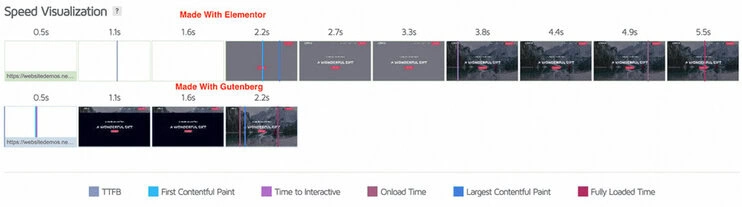
This demonstrates the classic performance penalty from page builders: extra JavaScript, CSS, and widget overhead. While Elementor has improved in 2025–2026 with Optimized DOM Output and dynamic asset loading, the impact remains noticeable on unoptimized sites — especially for users in regions in India and Bangladesh, where slower connections amplify delays.
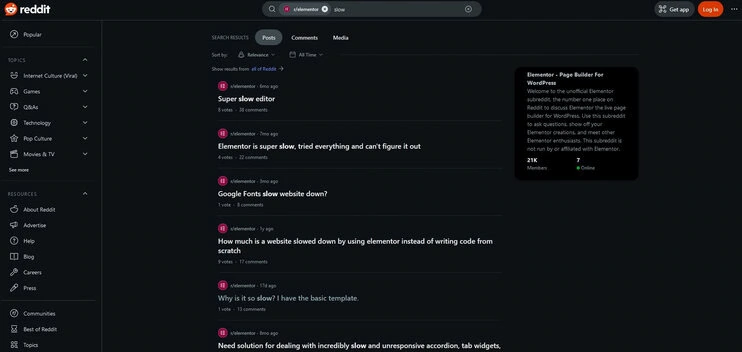
Key Takeaway: Elementor is not “slow” by default, but it requires proper optimization (WP Rocket + CDN + lightweight theme like Astra) to achieve sub-3-second loads. Community feedback on Reddit and Elementor forums frequently highlights this trade-off: massive design freedom in exchange for some performance tuning.
Pro Tip: Always test your site with tools like GTmetrix or WebPageTest from multiple locations (e.g., Asia servers) to see real user experience in your regions.
Optimization Tips:
- Enable experiments (Improved Asset Loading, Optimized DOM).
- Use lightweight theme (Hello Elementor/Astra).
- Add WP Rocket + CDN.
- Disable unused widgets.
Enhance Mobile/ Responsiveness:
Elementor is mobile-responsive by default, but for best results, manually fine-tune elements on tablet/mobile views — adjust margins, fonts, hide/show items, and preview in real-time to avoid common pitfalls.
- 4.9
Features & Flexibility
Elementor dominates here:
- Widgets: 40+ free, 100+ Pro (forms, popups, sliders, testimonials, pricing tables).
- Templates: 300+ premium kits, full websites/blocks.
- Theme Builder: Headers/footers, singles/archives, dynamic content (ACF/Pods).
- Popup/Form Builder: Triggers (exit-intent), integrations (Mailchimp, HubSpot).
- WooCommerce Builder: Product pages, cart, checkout.
- Elementor AI: Generates sections, text, images, code; credit packs available.
- Other: Global styles, Loop Builder, motion effects, custom CSS.
Deep Dive on Add-On Marketplace
One of Elementor’s biggest strengths is its massive third-party extension ecosystem — larger than most competitors. The add-on marketplace includes hundreds of plugins that expand functionality far beyond the core plugin:
- Essential Addons: Adds 90+ new widgets (pricing tables, advanced galleries, etc.).
- Dynamic Visibility: Conditional show/hide rules for elements.
- Split Test: A/B testing for pages/sections.
- Elemailer: Design transactional emails (WooCommerce order confirmations, etc.).
- And many more (e.g., JetEngine for advanced dynamic content, Crocoblock suite for directories/forms). This extensibility makes Elementor highly future-proof — you can add niche features without switching builders. Always test add-ons for compatibility and performance impact, as they can add extra bloat if not optimized.
Core Editor & Design Tools

Elementor’s visual front-end editor is real-time and intuitive:
- Drag-and-drop sections/columns/widgets.
- Inline text editing, right-click duplicate/paste styles.
- Navigator (tree view for complex pages), Finder (quick search), full-screen mode.
- Style controls: Colors, typography (Google Fonts/custom), shadows, borders, backgrounds (gradients/video), spacing, positioning (absolute/fixed).
Pro Tip: For mobile editing, use device-specific previews and custom breakpoints to ensure responsiveness—manual setup needed when building from scratch to avoid desktop-only issues.
Widgets & Elements
- Free: 40+ basics (headings, images, buttons, text, icons, spacers).
- Pro: 100+ advanced (carousels, testimonials, countdowns, flip boxes, price tables, login forms, media galleries).
- Motion effects: Parallax, 3D tilt, entrance/exit animations.
Templates & Kits

Elementor provides 300+ premium kits (full websites/sections) plus thousands from third-party marketplaces like Envato (one-time fees). Pro users get 23+ additional kits, while basics include 2 free full-website kits.
These often include unique animations, hover effects, and niche layouts — ideal for standing out in competitive industries. Always test imported templates for performance and compatibility to avoid bloat.
Pro Tip: Combine kits with themes for endless variety, but optimize for mobile—kits auto-adapt, but custom tweaks ensure seamless device views.
Business & Marketing Tools
Elementor excels in business/marketing features:
- Landing Page Editor: Drag-and-drop for high-conversion pages with CTA widgets, forms, and popups.
- WooCommerce Integration: Full customization of product pages, shops, carts, checkouts (Advanced+ plans).
- Form Builder: Advanced fields, spam protection (HoneyPot), integrations (Mailchimp, HubSpot, ActiveCampaign, Zapier).
- Role-Based Access Settings: Pro feature — assign permissions (edit/view only) for teams/clients.
- Popups & Notifications: Triggers (scroll, exit-intent), CRM/email automation, CTA widgets for lead generation.
Theme Builder (Pro Only)

Full site control without traditional themes:
- Headers/footers, singles/archives, 404/search pages.
- Dynamic tags for titles, featured images, ACF fields.
- Conditions: Display variations per page/post type.
Popup & Form Builder (Pro Only)

- Popups: Lightbox, slide-in, bars; triggers (exit-intent, scroll, time, click).
- Forms: Multi-step, file uploads, spam protection; integrations (Mailchimp, HubSpot, Zapier, CRMs).
Maintenance Mode (Pro Only)
Pro users can enable maintenance mode with fully customizable ‘coming soon’ templates — perfect for updating sites without visitors seeing unfinished work or broken layouts.
WooCommerce Builder (Pro Only)

- Customize product grids, add-to-cart, single products, carts, checkouts.
- Dynamic pricing, upsells, related products, breadcrumbs.
Best Theme Pairing – Why Astra + Elementor Works So Well
Elementor performs best when paired with a lightweight, compatible theme — and Astra is widely regarded as one of the strongest matches.
Astra provides hundreds of pre-built Elementor templates (blocks, pages, full sites) that import seamlessly, offering high-quality, flexible designs without compatibility issues. These templates are optimized for speed and work perfectly with Elementor’s widgets and Theme Builder.
Benefits of Astra + Elementor:
- Reduced bloat: Astra is minimal (~50 KB), offsetting Elementor’s ~150–170 KB addition.
- Faster setup: Import Astra templates and customize with Elementor drag-and-drop.
- Better performance: Lower HTTP requests and cleaner code than heavier themes.
- Agency-friendly: Ideal for freelancers/agencies building client sites quickly.
Recommendation: Start with Astra (free) + Elementor free for testing. Upgrade to Astra Pro (~$47/year) for advanced templates if needed. This combo is a favorite among professionals for balancing design power with speed — especially useful for users in South Asia, where fast loads matter for SEO and user retention.

- Generate full sections/layouts, rewrite text, create images, write custom CSS.
- Optimize existing content; credit-based (extra packs $3.99–$8.25/month).
- 2026 updates: Better code generation, AI-assisted responsiveness.
Collaboration Notes Feature
Pro users get built-in collaboration notes — similar to tools in design software like InDesign. Team members can leave comments directly on sections/widgets, making it easier for agencies/freelancers to gather feedback without external tools like Figma or Loom.
Other Advanced Features

- Loop Builder: Visual loops for dynamic content (blogs/products).
- Global Settings: Site-wide colors/fonts/widgets.
- Custom CSS/JS: For advanced tweaks.
- Maintenance Mode: Customizable “coming soon” templates (great for updates).
- Multilingual/RTL Support: 59+ languages.
- Extensions: Huge marketplace (Ultimate Addons, Crocoblock).
- 4.8
Elementor Plans & Pricing

Freemium model with annual billing (USD, excl. taxes; 30-day refund). No lifetime options.
- Free: Excellent for basics — better than most free builders.
- Pro Plans (annual, USD): Essential $59 (1 site), Advanced $99 (3 sites), Expert $199 (25 sites), Agency $399 (1,000 sites).
- Great ROI for individuals/freelancers; higher tiers pricey vs. Divi lifetime.
- Cloud Hosting option (~$2.99/mo intro) bundles Pro + managed hosting.

- Sites: Unlimited
- Key features: 40+ widgets, 30+ templates, basic AI
- Best For: Beginners, testing
- Sites: 1
- Key features: 57 Pro Widgets, 10 Cloud Templates, Theme Builder, Dynamic Content, Form Builder, and Expert support.
- Best For: Bloggers, single sites
- Sites: 1
- Key features: 86 Pro Widgets, 20 Cloud Templates, Popup Builder, Custom Code & CSS, Ecommerce Features, Collaborative Notes, + Other Essential Features
- Best For: Freelancers, small biz
- Sites: 3
- Key features: 30 Cloud Templates + Other Advanced Solo Plan Features
- Best For: Professionals, eCommerce
- Sites: 25
- Key features: 5,000 Cloud Templates + All Other Advanced Plan Features
- Best For: Mid-agencies
- Sites: 1000
- Key features: Max scale, priority support
- Best For: High-growth Agencies.
Add-Ons: AI credits extra (~$4-8/month). Cloud Hosting (~$2.99/mo intro) bundles Pro + managed WP.
Value Tip: For Asian users, pair with local CDN-optimized hosting (e.g., Kinsta) to minimize Asia latency.
Self-Hosting vs. Elementor Cloud Advice
Elementor offers two paths: the standalone Pro plugin (recommended for most users) or Elementor Cloud Website (hosting + Pro bundled). The Cloud option starts at ~$108/year per site but becomes expensive for multiples (e.g., 6 sites = $594/year).
For better control and cost savings, especially for agencies or multiple sites, pair the Pro plugin with self-hosted WordPress on a fast host (e.g., Kinsta, SiteGround, or Hostinger). This avoids lock-in and gives more flexibility with resources and backups.
- 4.5
Support & Community

- Free: Forums, docs, massive FB groups (136k+), YouTube.
- Pro: 24/7 chat/tickets (mixed response times — some fast, some delays).
- Ecosystem: Huge third-party add-ons (Ultimate Addons, Crocoblock).
Enhanced Support
Pro support starts with an AI bot for quick routing, escalating to human agents when needed — response times typically 1–24 hours, with priority on higher plans.
Popular and Easy Access to Help & Tutorials
One major benefit of Elementor’s widespread use is how easy it is to find support, guidance, and learning resources.
The official Elementor Facebook community alone has well over a hundred thousand members, and there are many independent groups with large, active audiences as well. This strong community presence is a clear sign of Elementor’s popularity and user satisfaction.
Beyond social groups, you’ll find countless YouTube tutorials and detailed blog articles that cover everything from basic setup to advanced, real-world use cases.
Thanks to this rich ecosystem of guides, videos, and user communities, learning Elementor and solving problems becomes fast and straightforward—even for beginners.
Elementor User Reviews & Ratings 2026
Aggregated:
- WordPress.org: 4.8/5 (7,000+ reviews) – Praise for flexibility; complaints on bloat.
- G2: 4.7/5 (390+); Capterra: 4.6/5 (110+); Trustpilot: 4.5/5 (3,633+).
- Common Quote: “Great for quick designs, but optimize for speed.” (2026 user).
Elementor Alternatives 2026
| Alternative | Overall Rating | Key Strengths | Pricing (Annual) | Best For |
|---|---|---|---|---|
| Spectra | 4.8/5 | Lightweight, native blocks, speed | Free/$49+ | Performance minimalists |
| Divi | 4.4/5 | Lifetime option, A/B testing, wireframe | $89 (unlimited) | Unlimited sites, testing |
| Beaver Builder | 4.3/5 | Stable, dev-friendly, low bloat | $99+ | Developers, reliability |
| Breakdance | 4.5/5 | Modern UI, fast rendering | Varies | Emerging pros |
Note: Spectra (from Brainstorm Force, makers of Astra) stands out for overcoming Elementor’s performance issues by integrating natively with WordPress blocks and the Site Editor. It offers low code bloat, Flexbox containers, presets, wireframing, and React-based speed, making it a strong alternative for users prioritizing fast load times over extensive design widgets.
Similar Products


Elementor Free vs Pro: Which Should You Choose?
For many users, the free version of Elementor is more than enough if the goal is to gain better control over the layout and design of individual pages or posts.
For instance, a blogger who wants to design a custom About page or improve basic page layouts can comfortably do so using the free edition.
That said, once your needs go beyond simple page design, upgrading to Elementor Pro becomes a smart investment. You should strongly consider Elementor Pro if you plan to:
- Build an entire website using Elementor
- Create websites for clients
- Design marketing pages such as landing pages or lead-capture forms
- Run a WooCommerce online store
- Develop advanced WordPress sites using custom fields or dynamic content
For these use cases, the additional tools and flexibility offered by Elementor Pro easily justify the cost.
Elementor Pro vs Elementor Cloud Website: What’s the Difference?
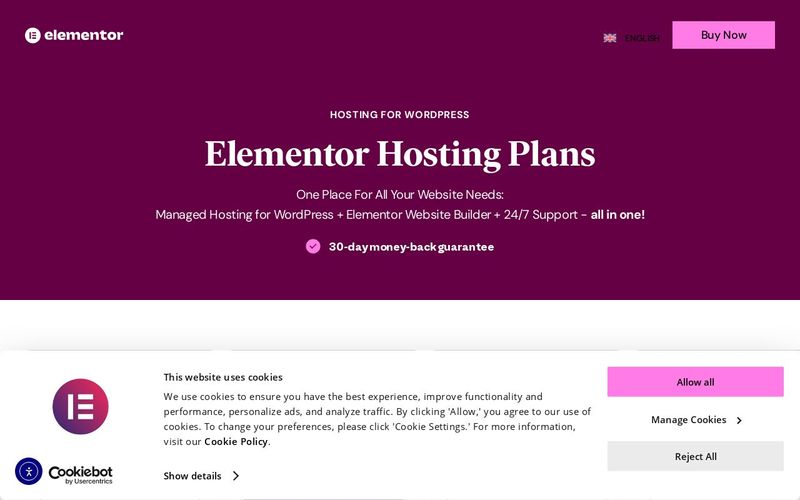
Elementor Pro and Elementor Cloud Website serve different purposes, even though they share the same core features.
Elementor Pro is a premium plugin that you install on your own self-hosted WordPress website. This option gives you full control over hosting, performance optimization, and technical setup.
Elementor Cloud Website, on the other hand, is an all-in-one solution that includes managed hosting along with all Elementor Pro features. With this option, you can skip buying hosting or installing WordPress separately—just sign up and start building right away.
Despite being hosted for you, Elementor Cloud still provides a complete WordPress environment where you can install additional plugins as needed.
This makes Elementor Cloud one of the easiest and most beginner-friendly ways to launch an Elementor-powered website. It can also be a cost-effective choice for small or simple sites.
However, for larger or more advanced projects, using your own hosting combined with the standalone Elementor Pro plugin is usually the better option, as it offers greater flexibility, performance control, and long-term scalability.
Final Verdict: Is Elementor Worth It in 2026?
Yes – ★★★★½ (4.6/5). Elementor is the ultimate visual WordPress page builder for 2026, excelling in design freedom, AI tools, and WooCommerce. It’s ideal for users (Asia loads ~1.7-2.2s with CDN) seeking flexibility without code. Drawbacks like moderate bloat are mitigable.
The free version works well for basic page and post design. If you want to build your entire website, Elementor Pro is the better choice. It unlocks theme building, more widgets, popups, and advanced design options.
Pairing Elementor Pro with a lightweight theme like Hello theme creates a strong, code-free setup.
For very simple websites, Elementor Cloud Website can be a good option.
However, most users will benefit more from their own hosting with Elementor Pro.
It offers better performance control and can be cheaper for multiple sites.
Ready to begin?
Choose Elementor Pro or sign up for Elementor Cloud Website.
Have questions about Elementor or this review?
Share them in the comments.
Did You Ever Use Elementor Before?
Submit Your Rating And Opinion
What PEOPLE SAY ABOUT Elementor?
Most Powerful Builder
Ive tried several builders, but Elementor offers unmatched design flexibility. The drag-and-drop interface makes complex layouts simple.
Response from Product Reviews
Hi Caleb! Thank you for the fantastic review and 5 stars!
Feature Packed
Elementor includes so many widgets and design controls. It can feel heavy sometimes, but the flexibility is worth it.
Response from Product Reviews
Thanks Isabella! Were continuously optimizing performance.
Amazing Template Library
The pre-built templates saved me hours of work. Perfect for freelancers building client sites fast.
Response from Product Reviews
Hi Mason! Were glad templates are helping your workflow.
Best page builder ever
Elementor transformed my site building drag-and-drop is so intuitive, templates are gorgeous, and Hello theme + Elementor combo is lightning fast. Support fixed a widget issue in 15 mins.
Response from Product Reviews
Hi Aarav! Thrilled Elementor made building fun and fast thanks for the kind words and 5 stars!
Intuitive and Professional
The interface is clean and intuitive. Even beginners can design professional pages quickly.
Response from Product Reviews
Thanks Evelyn! Thats exactly what we aim for.
Great for Marketing Pages
Landing pages, popups, forms everything in one ecosystem. Slight learning curve but powerful.
Response from Product Reviews
Hi Logan! Appreciate your feedback.
Best for Creative Freedom
I can design almost anything visually without touching CSS. Elementor makes creativity easy.
Response from Product Reviews
Thank you Harper! Creativity is key.
Reliable and Mature Product
Been using Elementor for years. Stable updates and strong community support.
Response from Product Reviews
Thanks Nolan! We appreciate your long-term support.
Great Popup Builder
The popup builder alone is worth using Elementor Pro. Conversion features are excellent.
Response from Product Reviews
Hi Aubrey! Glad you love the popup builder.
Excellent WooCommerce Integration
Designing product pages visually is a huge advantage for ecommerce projects.
Response from Product Reviews
Thanks Xavier! Happy selling.
Elementor FAQs
Is Elementor free?
Yes, the core is free with 40+ widgets and basic templates; Pro ($59+/year) unlocks advanced tools like popups and Theme Builder.
Does Elementor slow down my site?
It can add ~150 KB weight, but 2026 optimizations and caching (WP Rocket) keep LCP under 2.5s and CWV “Good.”
Is Elementor good for mobile sites?
Yes – responsive with custom breakpoints and device previews; manual tweaks ensure seamless adaptation.
Can I use Elementor with any theme?
Yes, but lightweight ones like Hello or Astra work best for performance.
Does Elementor have built-in SEO?
Basic (clean code); integrate Yoast for advanced. Core Web Vitals focus helps rankings.
What if I deactivate Elementor?
Designs remain but lose functionality; no shortcodes left behind.
Can I use Elementor with any theme?
Yes, but not all are fully compatible — it works best with lightweight themes like Hello Elementor or Astra to minimize conflicts and maximize speed.

- (4.9)
- (4.7)
- (4.5)
- (4.6)
- (4.8)
Latest Reviews




Affiliate Disclosure: BestPickHive reviews products independently. If you buy something through our links, we may earn a commission that helps fund our research and testing. Learn More.